Creating videos can be challenging, especially if you are new to video editing. Thankfully, CapCut, a free video editing app, has made things much easier with templates. If you want to know how to use template in CapCut, this guide will walk you through every step. By the end, you will be able to create professional-looking videos in just a few minutes.
What is a CapCut Template?
A CapCut template is a ready-made video design that comes with transitions, effects, text styles, and sometimes background music. Instead of starting from scratch, users can insert their photos or videos into the template, and CapCut automatically applies the design.
Templates are perfect for:
- Beginners who don’t know advanced editing
- Social media creators (TikTok, Instagram Reels, YouTube Shorts)
- Businesses creating quick promotional videos
- Students making project videos or presentations
Using templates helps you save time while producing high-quality content.
Why Templates Make Video Editing Easy
Many people avoid video editing because it can take hours to learn and create. With CapCut templates:
- You don’t need prior editing skills
- You can create engaging content in minutes
- Your videos look professional
- You can follow trends quickly
In short, learning how to use template in CapCut allows you to focus on content rather than complicated editing tools.
How to Use Template in CapCut – Step by Ste
Here’s a simple, beginner-friendly process to use templates in CapCut:
Step 1: Install CapCut
Download CapCut from the official app store (CapCut Official Website) or your phone’s app store. It is free and works on both Android and iOS devices.
Step 2: Open the App
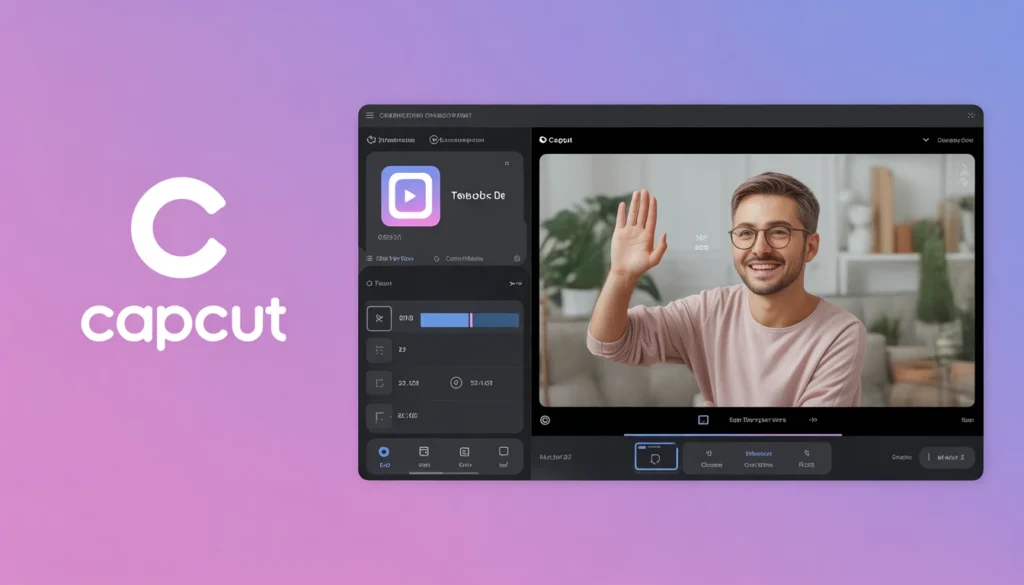
Once installed, open the app. You will see different options, including New Project, Templates, and Your Projects.
Step 3: Go to Templates Section
Tap on Templates. You will find various categories:
- Trending Templates
- Slow-Motion Templates
- Beat Sync Templates
- Photo Slideshow Templates
You can browse by popularity or search for a specific style.
Step 4: Select a Template
Choose a template you like. Tap on it and preview how it will look with sample content.
Step 5: Tap “Use Template”
Once you like the design, tap Use Template. CapCut will ask you to add your own photos or video clips.
Step 6: Add Your Media
Select the videos or images you want to include. You can usually add multiple clips or photos depending on the template design.
Step 7: Preview Your Video
CapCut automatically applies transitions, effects, and music. Tap Play to see how your video looks.
Step 8: Edit if Needed
Even after using a template, you can:
- Change text
- Replace music
- Adjust clip duration
- Add filters or stickers
Templates are customizable, so your video won’t look exactly like others.
Step 9: Export and Share
Once satisfied, tap Export. You can save the video in different resolutions and share it on TikTok, Instagram, YouTube, or any platform you like.
Tips for Using Templates in CapCut
- Follow Trends – Use trending templates for better engagement.
- Choose High-Quality Clips – Your video quality depends on the clips you add.
- Don’t Overcrowd – Templates look best when you don’t add too many clips or text.
- Personalize – Change colors, text, or music to make your video unique.
- Practice Regularly – The more you use templates, the faster and better you’ll become.
Types of Templates You Can Use
CapCut offers a variety of templates for different purposes:
Trending Templates
These templates follow the latest viral trends, often including popular music and fast transitions.
Slow Motion Templates
Great for cinematic or aesthetic videos, perfect for Instagram and TikTok.
Beat Sync Templates
Transitions are synced with music beats, ideal for dance or energetic content.
Photo Slideshow Templates
Use your pictures to create memorable slideshows for birthdays, events, or travel.
Text-Based Templates
Templates focused on quotes, tips, or educational content.
Using different templates helps your videos stay fresh and engaging.
Benefits of Using CapCut Templates
- Time-Saving – You can make videos in minutes instead of hours.
- Beginner-Friendly – No need to learn advanced editing software.
- Professional Look – Templates are designed by experts.
- Versatile – Perfect for social media, business, or personal content.
- Encourages Creativity – You can focus on storytelling while CapCut handles editing.
Templates make video creation easy, fast, and enjoyable.
Common Questions About Using Templates
Can I use templates without an account?
You need a CapCut account to save and export your projects, but browsing templates does not require login.
Can I use templates offline?
Most templates require internet access to download, but once applied, editing can be done offline.
Can I remove the template music?
Yes, you can mute, replace, or adjust the music in your video.
Are templates copyrighted?
Templates belong to their creators. For personal or social media use, it’s safe, but for commercial use, always follow CapCut rules.
CapCut Template for Social Media
CapCut templates are ideal for social media because they:
- Support vertical video format
- Include trendy music and effects
- Help you create content quickly
If you want to grow your TikTok, Instagram, or YouTube channel, knowing how to use template in CapCut is essential.
Advanced Tips for Better Videos
- Combine templates with your own editing for unique results
- Use templates that match your niche or style
- Experiment with different categories to find what works
- Adjust clip timing to emphasize key moments
Templates are not a replacement for creativity—they enhance it.
Safety and Best Practices
- Always use templates from the official CapCut app (https://www.capcut.com/)
- Avoid downloading templates from unknown sites
- Give credit if using someone else’s template for commercial content
- Keep your app updated to access the newest templates
Following these practices ensures a smooth experience and avoids legal or technical issues.
SEO Value of “How to Use Template in CapCut”
From a website perspective, “how to use template in CapCut” is a high-value keyword because:
- People actively search for beginner-friendly guidance
- It is a trending topic due to CapCut’s popularity
- Search volume is growing as more creators join TikTok and Instagram
- Low competition in detailed, step-by-step guides
Creating long, detailed, and original content around this keyword can drive traffic and improve Adsense approval chances.
Read More: CapCut Template New Trend – Your Ultimate Guide to 2026 Trends
Final Thoughts
Learning how to use template in CapCut is a game-changer for beginners and content creators. Templates save time, simplify editing, and produce professional-quality videos.
Whether you are creating social media content, educational videos, or personal projects, templates make video creation simple, fast, and fun.
With regular practice and experimentation, anyone can become a skilled video creator using CapCut templates.
Also Read: CapCut Template – Frequently Asked Questions (FAQs)